

Manual Scenarios
Manual scenarios, refer to scenarios for which the user forces the real-time remote management of his devices. For example, with the AWAY mode, when a user is not at home, he can force all his compatible heating devices to switch into their away profile. Currently available manual control scenarios :Automatic control scenarios
Automatic control scenario, allow users to subscribe to an automatic intelligent control program. By subscribing, the user explicitly delegates to the system the responsibility of managing their compatible devices on their behalf. Each scenario comes with a clear promise. For example helping the user reduce their energy bill while maintaining an appropriate level of comfort. The program will be launched at specific moments, either based on a timely trigger (e.g. an upcoming peakday) or every day at a fixed scheduled time. For instance, having an active automatic scenario does not necessarily mean that devices are being remotely controlled at all times. A first example is a scenario that optimizes the user energy consumption of his electrical devices during peakdays. For contracts where energy prices may triple during these specific days, the system automatically lowers the heating setpoint to reduce consumption and generate savings. A second example is the daily off‑peak optimization scenario, designed for users having a contract with peak/off‑peak hours. In this scenario, the system performs a controlled overheating during off‑peak hours so that, thanks to the building’s thermal inertia, heating does not need to restart during peak hours. This routine is only applied when the algorithm determines that it will effectively reduce the user’s overall bill without compromising comfort. In both cases, by subscribing to an automatic control scenario, the user chooses to let the system manage device schedules and heating behavior intelligently, with the guarantee that optimizations will be applied only when they bring a real and measurable benefit. Currently available automatic control scenarios :Schedule control
Peakday’s optimisation
With this heating automatic control scenario, the goal is to help the user manage his electric consumption on specific days. When a peakday trigger is received, a control scenario execution is launched on all devices enrolled in this scenario and new schedules are sent for those devices. There are two types of heating devices and the algorithm applied on the planning depends on the device category :- Profile‑type devices: The profile applied during peak hours is the one with the lowest setpoint. If multiple predefined profiles share the same lowest temperature value, the first profile in alphanumeric order is selected.
- Temperature‑type devices: The setpoint applied during peak hours is the current scheduled setpoint for those hours, reduced by 3°C.
Daily optimisation
This heating automatic control scenario provides a daily routine for sites whose energy contract includes peak/off‑peak hours and that have compatible connected heating equipments. Its purpose is to help customers reduce their energy bill by applying controlled overheating during an off‑peak period, just before the transition to peak hours. Thanks to the building’s thermal inertia, this approach prevents the need to restart heating devices during peak hours. Every day at fixed scheduled time, a control scenario execution is launched on all devices enrolled in this scenario and new schedules are sent for those devices. The algorithm ensures that overheating is applied only when it leads to an overall reduction in the customer’s energy bill. To make this decision, it gathers and evaluates specific site characteristics such as the dwelling type, its thermal performance (insulation quality), the outdoor temperature, the heating setpoint, the pricing structure, etc. To ensure user comfort, overheating is limited to :- A maximum +2°C compared to the current applied setpoint
- A maximum of 2 hours before the start of peak hours
Schedule restoration
Once the controlled period is over, the user’s schedule is restored.- For a peakday scenario, the restoration occurs as soon as the peak hours end.
- For the daily optimisation scenario with overheating, the restoration takes place at the end of the controlled day, that is, at 00:01, immediately after the optimised day ends.
Global functioning scheme
Manual scenarios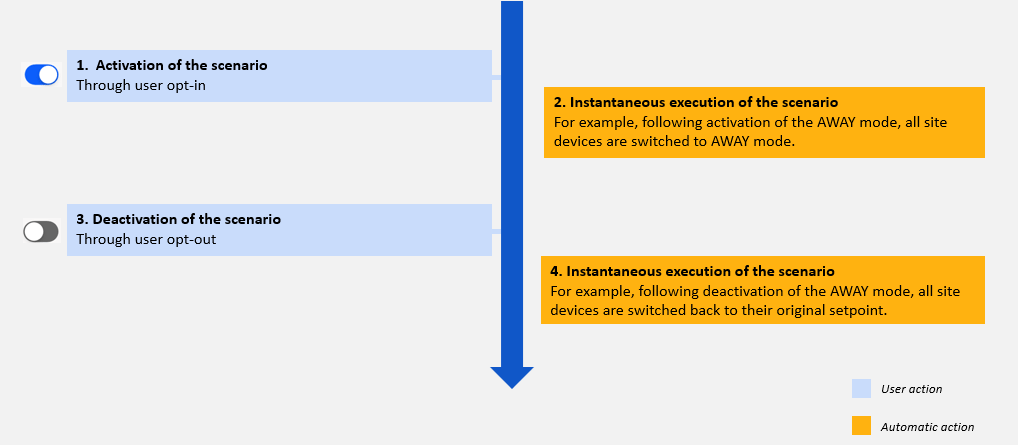
Fig 1: Functioning scheme of manual scenario activation and deactivation steps
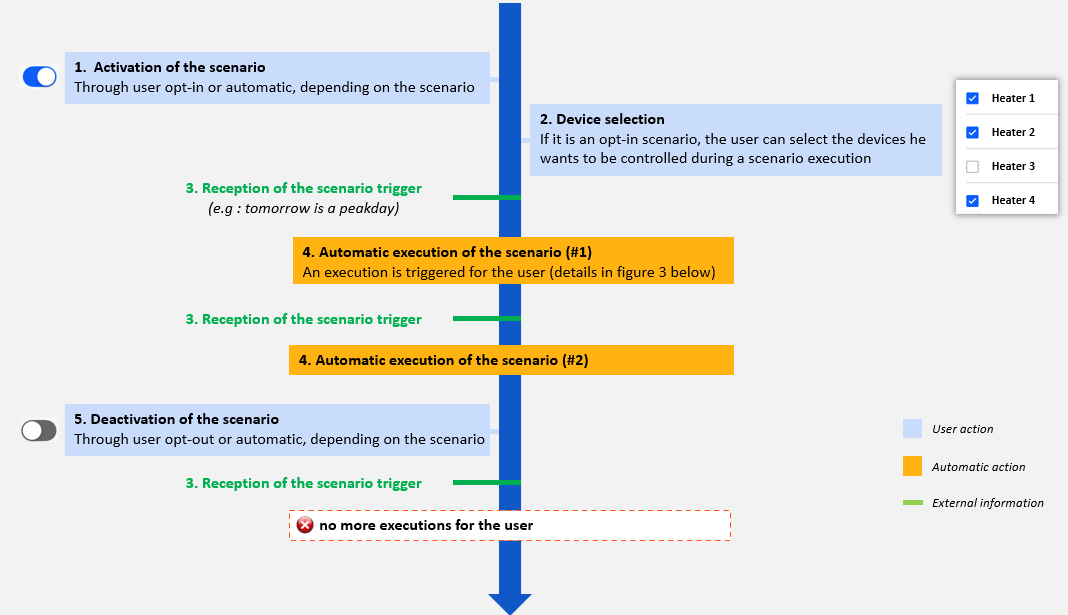
Fig 2: Functioning scheme of automatic control scenario activation, deactivation and settings steps
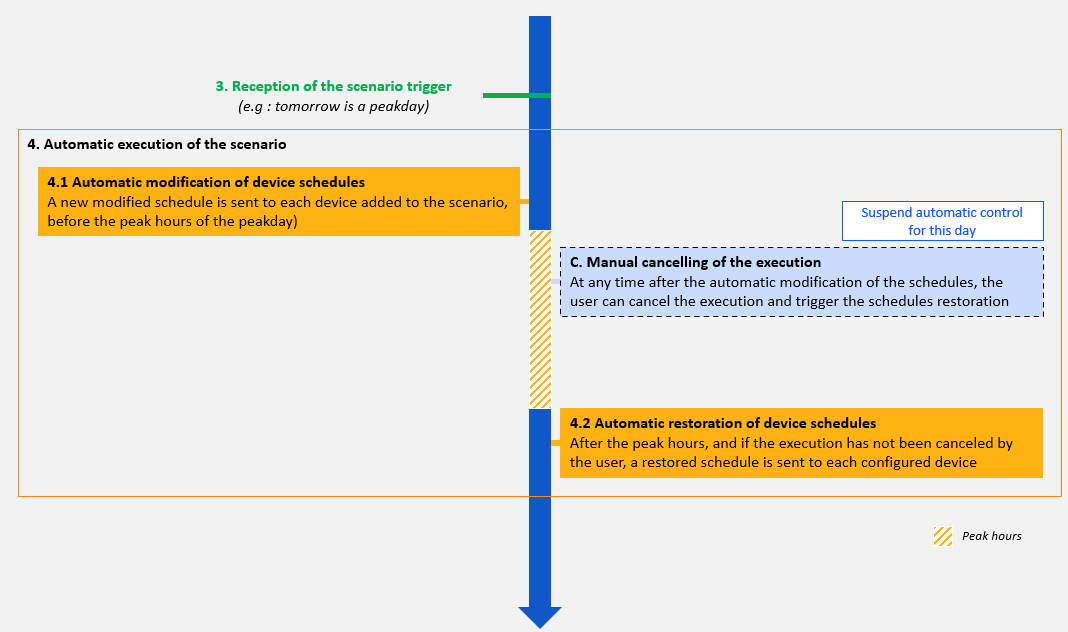
Fig 3: Functioning scheme of automatic control scenario execution
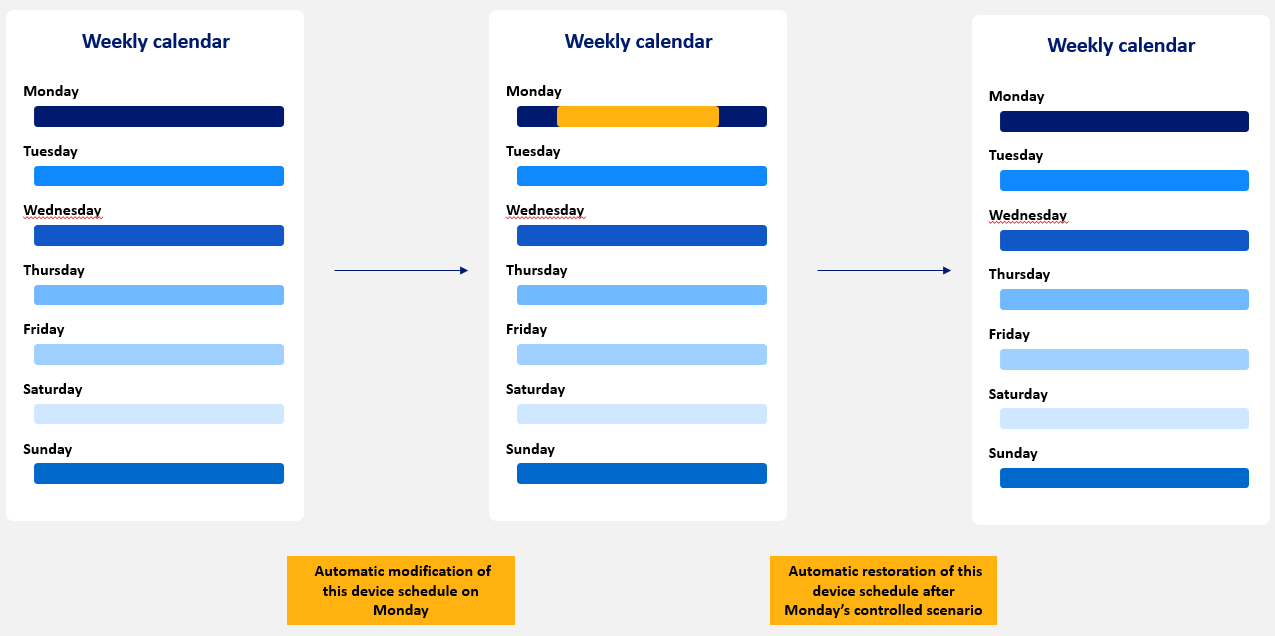
Fig 4: Functioning scheme of control and restoratiton rules
Endpoints overview
To be able to set up and execute control scenarios, 7 endpoints are available :1. Display available automatic control scenarios for a site
Description : This API returns all control scenarios (manual and automatic) available for a site based on the user’s contract. The API output provides information on each scenario, such as its current status (in use or not), whether it is editable, and other related details. A scenario is considered “available” for a site if the latter has at least one device eligible:- To be considered eligible for an automatic scenario, a device has to be a heating device, with read/write rights and having the capability to receive and send weekly schedules.
- To be considered eligible for the
AWAYscenario, a device has to be a heating device, with read/write rights and have an away mode.
GET /api/v1/sites/{site-id}/control-scenarios
Input :
- Path parameter: The site identifier (
site-id) - Query parameter (
optional): The scenario mode to filter scenarios on their modeAUTOorMANUAL
Example :
GET /api/v1/sites/1dab569e-778b-4c46-9588-34ca3aeae293/control-scenarios
2. Activate and Deactivate a specific scenario for a site
These two API can be used to activate or deactivate a scenario, either a manual scenario (e.g.AWAY) or an automatic scenario (e.g. OPTIM_TEMPO, OPTIM_ZENFLEX, etc.).
- In case of a manual scenario, the activation/deactivation of the scenario leads to its immediate execution.
- In the case of an automatic scenario, activation does not mean instantaneous execution of the control. The latter is launched with the reception of an event/trigger such as the a peakday.
- To be considered eligible for an automatic scenario, a device has to be a heating device, with read/write rights and having the capability to receive and send weekly schedules.
- To be considered eligible for the
AWAYmode, a device should have an away mode and has to be a heating device with read/write rights.
GET/control_scenario
-
Endpoints :
POST /api/v1/sites/{site-id}/control-scenarios/{scenario-id}/activatePOST /api/v1/sites/{site-id}/control-scenarios/{scenario-id}/deactivate
-
Input : A site identifier (
site-id) and a scenario identifier (scenario-id) - Output : No output expected, just an API code. See API documentation for details.
-
Examples :
POST /api/v1/sites/141ea311-fea6-4dda-a459-392a39ddf6a5/control-scenarios/OPTIM_TEMPO/activate
3. Equipment selection
Thoses two API are intended to be used together to define the equipment to be controlled by a scenario. The available equipments for a scenario can be displayed thanks to the first endpoint (section 3.1) and then the user can select the equipment to be controlled (section 3.2). To be considered as elligible, a device has to be a heating device, with read/write rights and having the capability to receive and send weekly schedules.3.1. Display, for a scenario, the site eligible equipments :
- Endpoint :
GET /api/v1/sites/{site-id}/control-scenarios/{scenario-id}/settings - Input :
- Path parameters : the site identifier (
site-id) and the scenario identifier (scenario-id)
- Path parameters : the site identifier (
- Output : List of devices with characteristics (
id,label,provider,statusand if the device has been selected for this sccenario or not ) - Example :
GET /api/v1/sites/1dab569e-778b-4c46-9588-34ca3aeae293/control-scenarios/OPTIM_TEMPO/settings
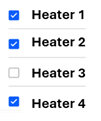
Fig 5: Example of a device selection menu
3.2. Select / unselect equipments for an automatic control scenario :
The devices that will be remotely controlled during automatic control scenarios are the ones set as active in the settings with this API.-
Endpoint :
PUT /api/v1/sites/{site-id}/control-scenarios/{scenario-id}/settings -
Input :
- Query parameter : A site identifier (
site-id) and a scenario identifier (scenario-id) - Body (required): A list of devices with their identifier (
id) and status (active)
- Query parameter : A site identifier (
- Output : No output expected, just an API code. See API documentation for details
-
Example :
Endpoint example :PUT api/v1/sites/1dab569e-778b-4c46-9588-34ca3aeae293/control-scenarios/OPTIM_TEMPO/settingsRequest body example:
4. Cancel the execution of an automatic control scenario on all devices
This endpoint can be made available to a user so that he can stop the execution of an automatic control scenario running for his site on all devices. If the API runs successfully, the user’s schedule is instantly restored on all the devices that had been automatically controlled. The rule applied for the cancellation is the same as the one for the restoration: keep the user’s current schedule outside the modified timeslots (i.e outside the peak hours) and restore the modified timeslots with the initial schedule values. This cancellation will be available in the execution history (see section below) thanks to the endpointGET /api/v1/sites/{site-id}/control-scenarios/executions. The status of this site execution is set to:
OK: if all the devices have been successully cancelledPARTIAL_OK: if at least one of the devices has not been cancelled successfully.KO: if none of the devices were cancelled.
-
Endpoint :
POST /api/v1/sites/{site-id}/control-scenarios/{scenario-id}/executions/{execution-id}/cancel -
Input :
- Path parameters :
- The site identifier (
site-id) - The scenario concerned (
scenario-id) - The site execution ID (
execution-id) to cancel
- The site identifier (
- Path parameters :
- Output : No output expected, just an API code. See API documentation for details.
-
Example :
POST /api/v1/sites/ed12095b-692f-4742-a83f-ca56562b9238/control-scenarios/OPTIM_TEMPO/executions/baa2813a-43bb-4e51-a06a-5b293e740966/cancel
5. Retrieve all control scenario executions over a given period of a site
This endpoint can be used to retrieve the execution history for a scenario over a given period (“Past slots”). The output provides information about actions carried out at the device and the site level, in both manual and automatic scenarios.-
Endpoint :
GET /api/v1/sites/{site-id}/control-scenarios/executions -
Input :
- Path parameter: A site identifier (
site-id) - Required query parameters:
beginTs: Begin date of the requested period (included)endTs: End date of the requested period (excluded)
- Optional query parameter:
scenarioId: scenario identifier Note that this period is limited to a maximum of 40 days.
- Path parameter: A site identifier (
-
Output : A list of site executions with detailed information regarding the scenario, the type of execution (
RUN,STOP,CANCEL), the execution status and details about the devices executions associated to this site. -
Example :
GET /api/v1/sites/2bd6f8f3-dcdd-47f9-abce-e32c6f4f0bcb/control-scenarios/executions?scenario-id=OPTIM_TEMPO&beginTs=2025-01-11T10:49:56Z&endTs=2025-01-31T10:49:56Z